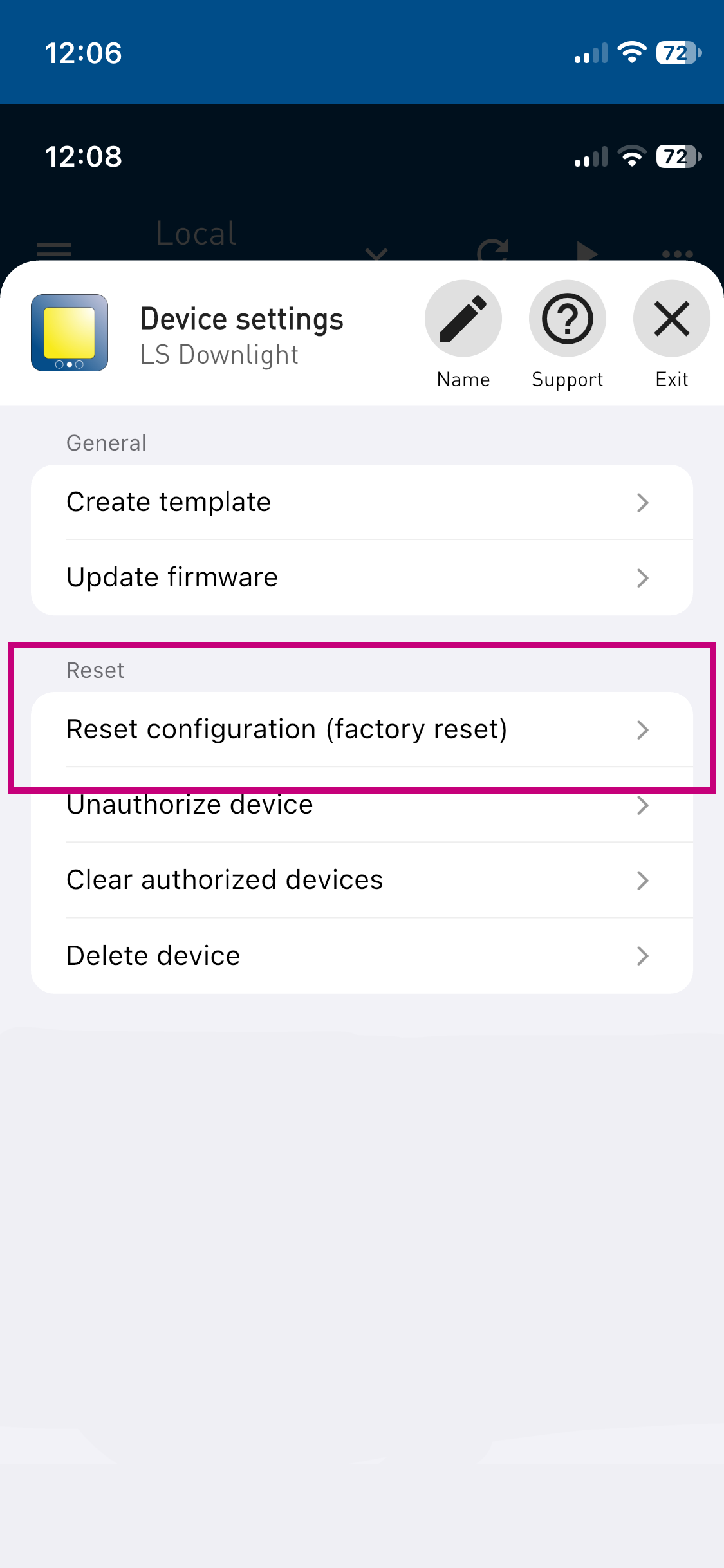
In this manual, we describe how reset settings to factory defaults
If you haven't used the Bever App before, please make sure you have an Bever account and are abele to login into the Bever App.
Connect to the device
In this example we assume that you want to update an I-Control from firmware version 1.1 to firmware version 1.3).
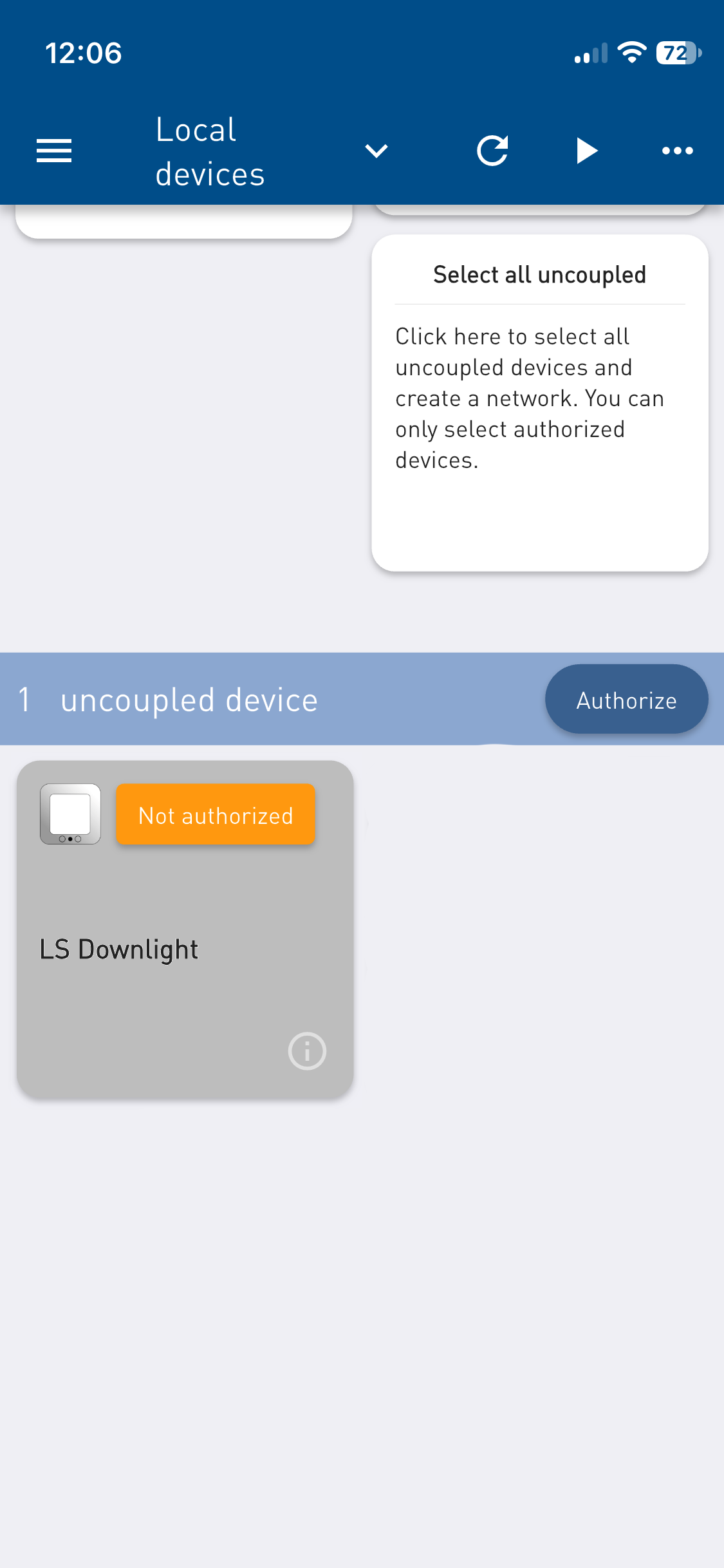
If the device is uncoupled and not in an network, you will see a similar screen as the image below. The device in this guide is unsupported, but you can still update the firmware regardless.
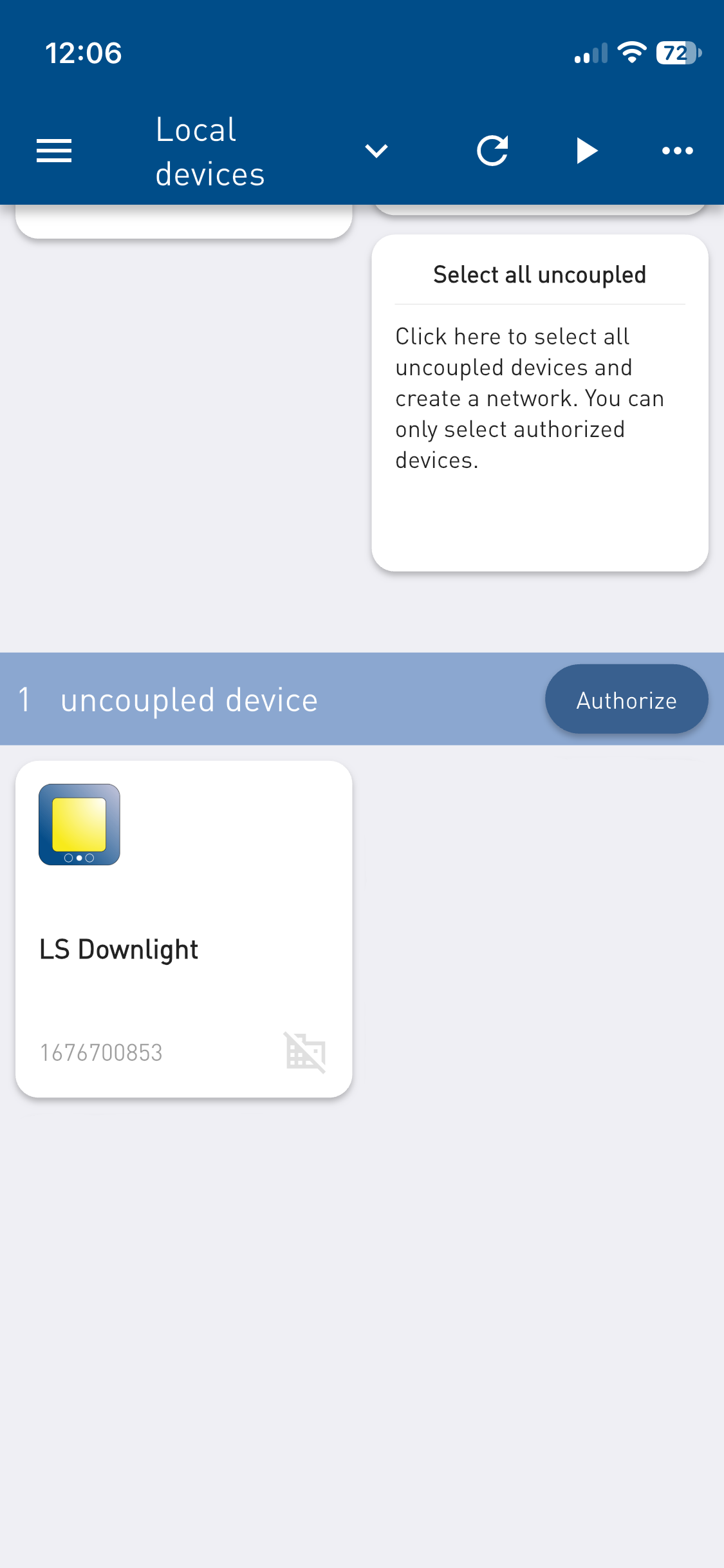
In order to open the settings page, tap and hold the device button until a message appears which reads "Sending request to authorize". Please wait until the circular loading icon is gone. When it is gone, tap and hold the button again to open the settings page.
Note
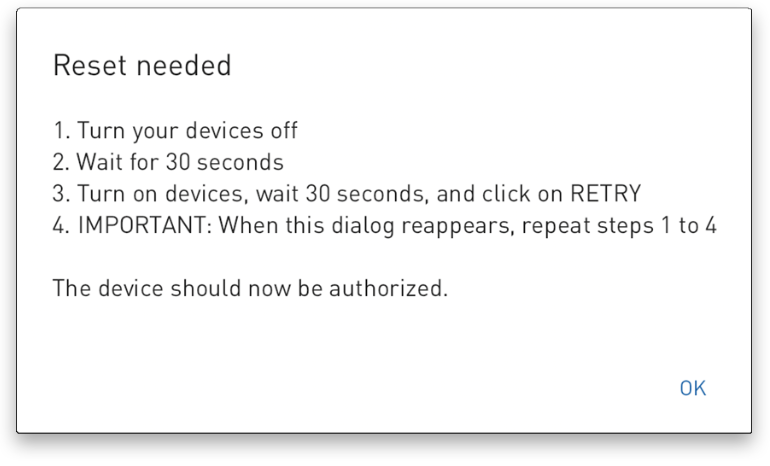
If you are connecting to a Bever Smart device for the first time, a physical authorization step is required. In this case, you will be asked to turn off the device, wait 30 seconds, and then restart it.
 |  | 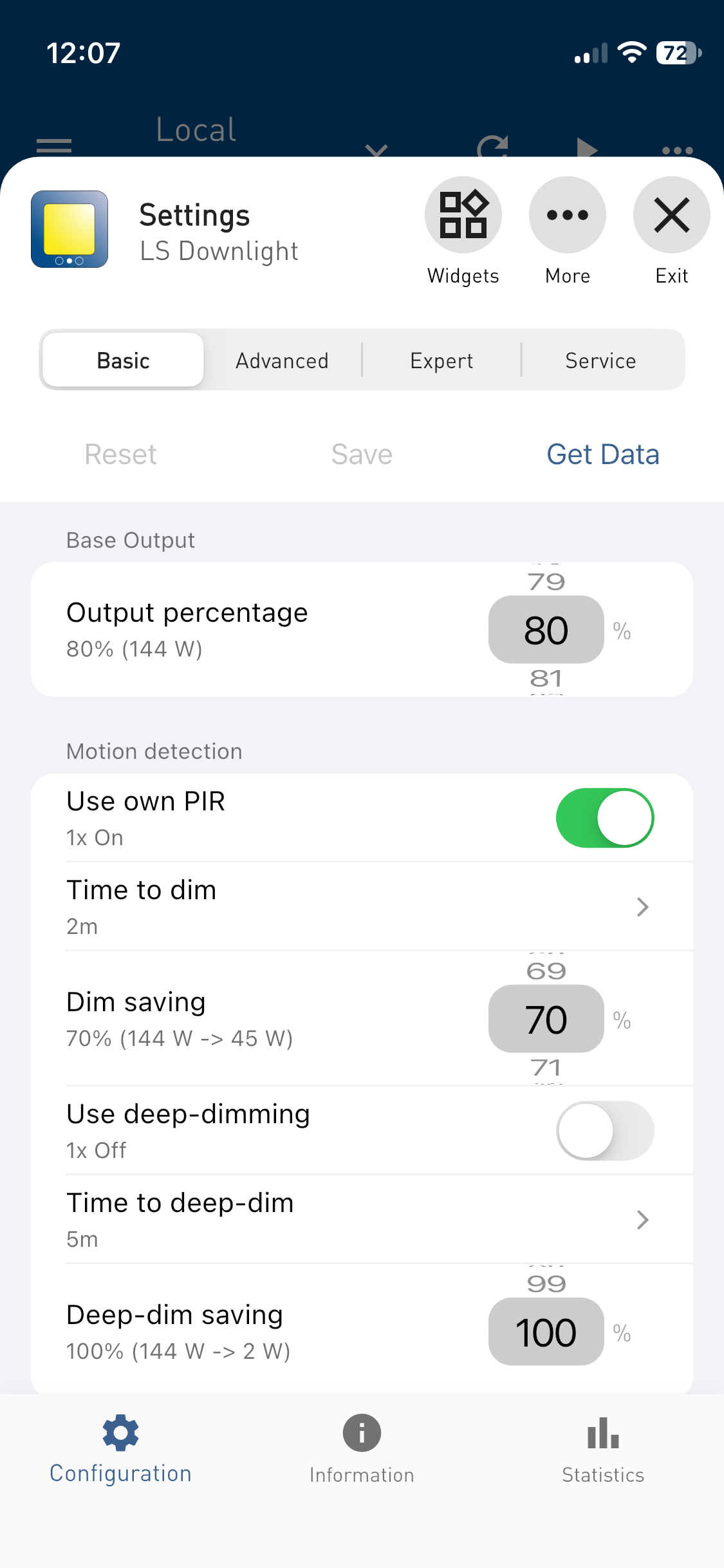 |
Once you see the settings page, tap the "More" option in the top right-hand corner (...) in order to open the device settings page.
Here you can select to reset to factory defaults.