
This article gives an overview of the IC-Sart Touch main screen.
in this article:
Overview
Overview
Below is an overview of the IC-Smart Touch’s main screen
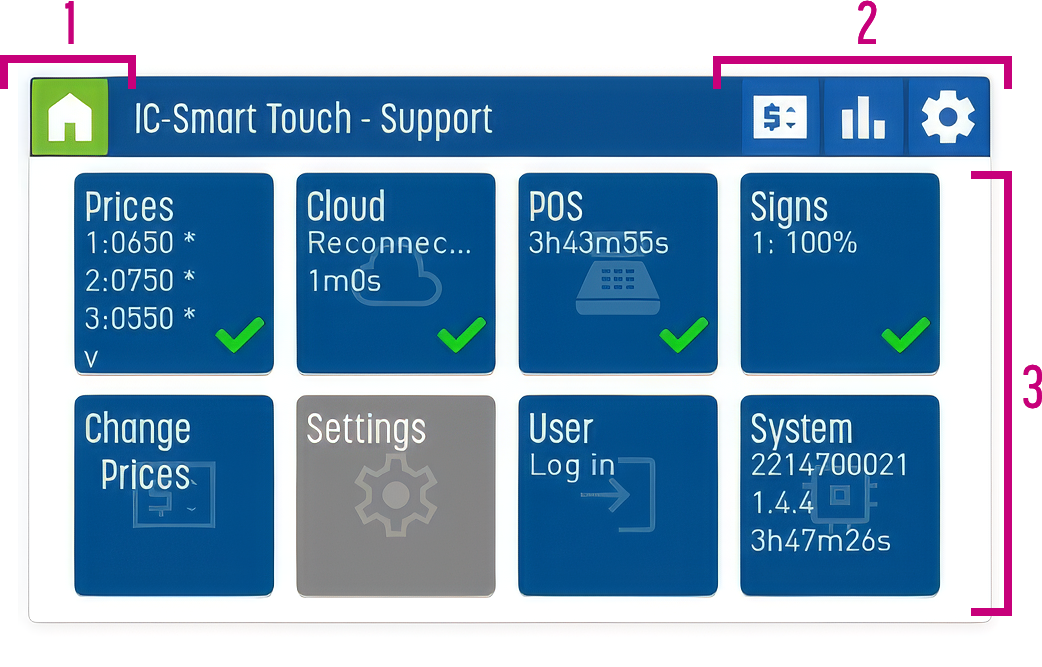
- Home button
brings you back to this Home Screen if any other screen is shown. - Quick acces to:

Change Prices
Here, you can manually adjust prices or revert manually adjusted price lines to automatic.
This option is also accessible via the “Change Price” tile on the main screen.
Note:
Depending on the login level and the settings of the IC-Smart Touch, this feature may be set to read-only. You will then need to log in with a higher level to change the prices.

Statistics
Opens the statistics page.
On this page, you will find statistics on the following topics: prices, internet/cloud connection, till integration, connection to the various display panels and the system itself.
 Settings
Opens the settings page
You can adjust the IC-Smart Touch settings via this page.
Note:
You must log in with an installer account or an owner account to be able to change certain settings. If you are not logged in with the correct access level, you will only be able to view the settings. ‘View only’
3. Main screen
The home screen features a number of tiles. These tiles provide information on various topics. Tapping a tile will open the relevant page for statistics or settings.
Note:
Depending on the configuration of your IC-Smart Touch, there may be more or fewer tiles available on the home screen.
Main screen tiles
Various tiles are available on the home screen. These tiles provide information on various topics. By tapping a tile, you can access the relevant settings or statistics.
The various tiles and the information they display are explained below.
Prices
Provides an overview of the first three price lines.
If you tap the tile, the statistics page opens, displaying the price information.
An asterisk behind the price indicates that it is a cloud price.
Two symbols could be shown in the bottom right-hand corner.
| Symbol | Meaning |
 | Normal operation Prices from the Cloud or POS are sent to the displays in the pole sign |
 | One or more prices have been adjusted manually. Automatic price updates from the POS or the cloud will not be applied to the adjusted prices. |
Cloud
Provides an overview of the connection to the cloud. This tile displays a timer which is reset whenever the IC-Smart has connected to the Bever Dashboard to retrieve prices. This normally happens every minute.
If you tap the tile, the statistics page opens, displaying the cloud information.
Two symbols could be shown in the bottom right-hand corner.
| Symbol | Meaning |
| Normal operation |
 | The dashboard connection is late, or the device is not yet linked to a company and site |
 | No contact with the Dashboard. Check wiring, internet connection and/or firewall settings |
POS
This tile shows a timer that is reset every time the POS communicates with the IC-Smart. The frequency with which this occurs depends on the POS protocol used.
If you tap the tile, the statistics page opens, displaying the POS information.
Three symbols could be shown in the bottom right-hand corner.
| Symbol | Meaning |
| Normal operation |
| Prices from the POS arrive later than usual |
 | No prices arriving from the POS. Check the PROTOCOL IN wiring and the serial settings as well as settings on the POS system that could explain why prices are not received. |
Signs
This tile provides an overview of the number of pole signs that have been set up and the connection/link to the relevant Sign Contoller.
If you tap the tile, the statistics page opens, displaying the Signs information.
Three symbols could be shown in the bottom right-hand corner.
| Symbol | Meaning |
| All signs are fond and have a good link with the IC-Smart Toch |
| A sign is reachable but not up to date yet |
| At lease one Sign Controller can be found / no link. Check wiring or power. |
Change prices
Tapping this tile brings you to the screen where you can manually adjust prices or revert manually adjusted price lines to automatic.
This option is also accessible via the quick access option in the top right hand-corner of the screen.
Note:
Depending on the login level and the settings of the IC-Smart Touch, this feature may be set to read-only. You will then need to log in with a higher level to change the prices.
Settings
Tapping this tile opens the settings page
You can adjust the IC-Smart Touch settings via this page.
Note:
You must log in with an installer account or an owner account to be able to change certain settings. If you are not logged in with the correct access level, you will only be able to view the settings. ‘View only’
User (log in)
Tapping this tile gives you the possibility to log in. A popup shows a code that starts with A, and a field for the response.
Generate the code in the Bever App, type in the six digits code generated by the Bever App and confirm with the green tick. .
The tile then shows the level you are logged in at instead of "Log in", and applicable tiles turn from grey to blue and can be used.
If you do not have access to the Bever app of do not have the installers code, please contact Bever Innovations Tech Support.
System
This tile shows basic information:
- Serial number of the IC-Smart Touch
- Software version currently running on the IC-Smart Touch
- Uptime of the device.
If you tap the tile, the statistics page opens, displaying more system information.