
This article describes the settings page of the IC-Smart Touch and the options available there.
Before you can adjust the settings on the IC-Smart Touch, you may need to log in to access these functions.
in this article:
Overview
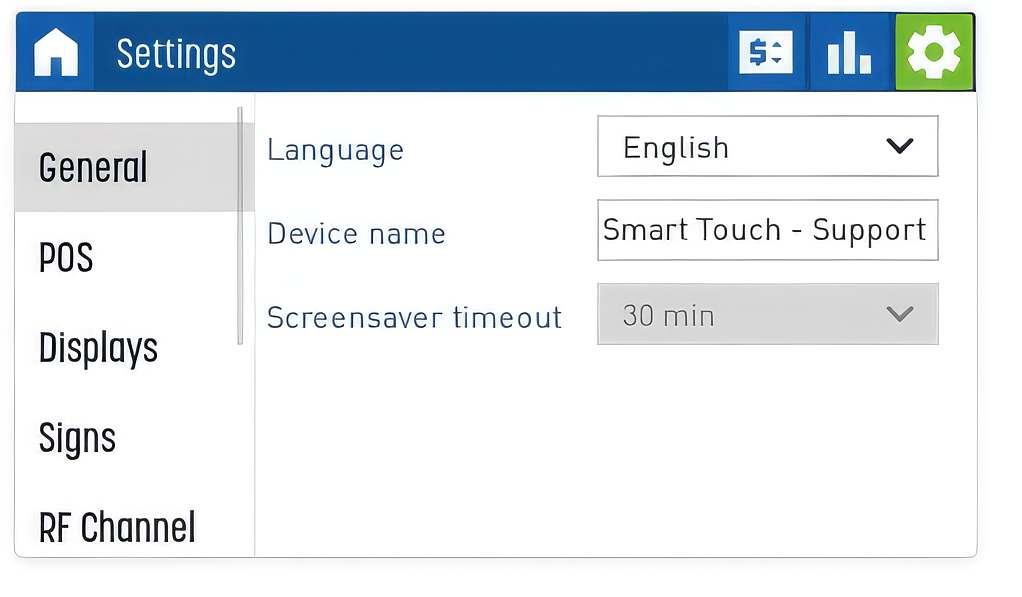
The settings page has a menu on the left-hand side with various topics. Tapping on one of these will display the relevant options on the right-hand side of the window, which can be adjusted or configured.
Options
The topics from the menu on the left-hand side of the screen are discussed below, along with the settings that can be configured.
General
On this page, you can change the language of the user interface and the device name.
The screensaver timeout can only be set by Bever Innovations.
POS
On this page, you can configure the following settings for the POS connection:
- POS protocol
- Baud rate
- Interface
A wiring diagram is available at the bottom of the screen and depends on the selected protocol / interface
Displays
Display and price-related settings can be configured on this page
- Show price at start up
Determines if the IC-Smart Touch will save prices. If the IC-Smart Touch is switched off and back on, it will come back with the old (last known) prices if this option is switched on. - Price change login
By default, anyone with access to the IC-Smart Touch can manually change prices or values using the ‘change prices’ option. If this option is enabled, you must log in before you can change prices. - Pricenames
You can give each price line a name. These names are visible on the statistics page and on the web interface.
Signs
On this page, you can configure the settings for the connection to the Sign Controller
- Connection
Select from the drop-down menu whether the connection is wireless (RF), whether it is a cable connection (Data cable), or whether the IC-Smart Touch should automatically determine whether to communicate via cable or wirelessly (Auto). - Signs
Tick the checkbox for the required signs
RF Channel
On this page, you can change the wireless connection settings (if this feature is used)
- RF Channel
Change this to select the RF channel used by the Sign Controller.
Note:
Changing this setting may cause an existing wireless connection to be lost! Always consult the documentation and settings for other Bever Innovations devices before making any changes.
- PL
Changes the transmission power of the RF connection
NOTE:
Changing this power setting may mean that the installation no longer complies with local regulations. Always check whether the new setting complies with local regulations.
Remote
Here you can change the settings for remote access and the support connection.
By tapping ‘Connect’, you can grant Bever Innovations access to your IC-Smart Touch for support purposes.
Installer test
Please refer to the Installer Test Manual for further information
Network
Configure network-related settings
- DHCP
Toggle DHCP on or off for static or automatic IP address
If static IP addresses are used - IP Address
- Subnet mask
- Gateway
- DNS
- DNS2
Setup
Allows you to configure the IC-Smart Touch as follows
- Launch the first-use wizard
- Enter the quick configuration code
- Reset to factory defaults
- Restart services
- Reboot the device