This article describes how to adjust the number of signs where the IC-Smart Touch connects to.
In this article
Log in to the IC-Smart Touch
Note:
The procedure written below requires the IC-Smart Touch to run firmware version 1.3.6 or higher. If it is using an earlier version, please contact Bever Innovations Tech Support
Log in to the IC-Smart Touch using an installer account
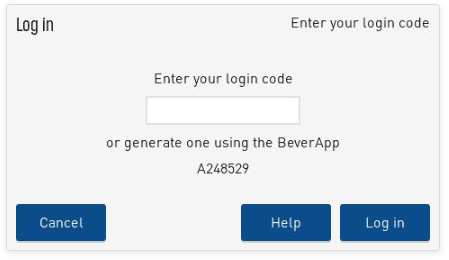
- Tap the 'User Log in' tile on the main screen (or tap the 'Settings' tile on the main screen. An pop-up window appears and select 'Log in').
- Generate the login code using the Bever App or use the general login code for installers. If you are not an installer or if do not have the general login code, please contact Bever Innovations Tech Support.
Changing the settings
- Tap the settings tile on the main screen or the gear icon in the top right corner to access the settings menu.
- From the side menu tap 'Signs'.
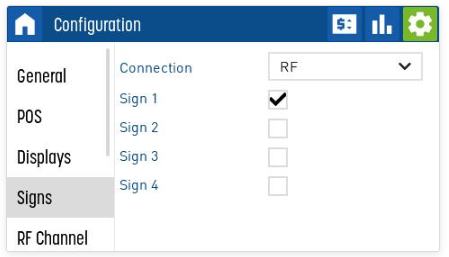
- Select the Sign ID's you would like the IC-smart Touch to connect to by checking the checkboxes.
- Tab the 'Home' icon in the top left corner to navigate back to the main screen.
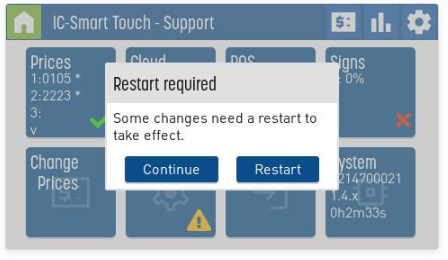
You will be asked to restart the IC-Smart Toch to activate the new settings.